What is a Local Backup?
A local backup is the simplest and most accessible way to protect your files. By copying your data to a hard drive, USB stick, or network storage device near your computer, you create a safety net that’s always within reach.
Local backups give you complete control over your data. You decide what gets backed up, where it’s stored, and who can access it. No internet connection required, no subscription fees, and no third-party company holding your files.
How Local Backups Work
A local backup copies your files to storage devices physically connected to your computer or local network. The backup process runs directly between your machine and the storage device without sending data over the internet.
The process typically works like this:
- Selection: You choose which files and folders to protect
- Copying: The backup software copies selected data to your local storage device
- Verification: The software checks that files copied correctly
- Scheduling: Future backups run automatically based on your settings
Modern backup software handles encryption, compression, and deduplication to optimize storage space. Once configured, everything happens automatically in the background.
Types of Local Backup Storage
You have several options for local backup storage, each suited to different needs and budgets.
| Storage Type | Best For | Pros | Cons |
|---|---|---|---|
| External Hard Drive | Most home users | Affordable, large capacity, portable | Can fail, vulnerable to physical damage |
| USB Flash Drive | Small file collections | Extremely portable, durable | Limited capacity, easy to lose |
| Network Attached Storage (NAS) | Homes with multiple devices | Centralized backups, accessible by all devices | Higher cost, requires network setup |
| Internal Secondary Drive | Desktop computers | Fast, always connected | Lost if computer stolen/damaged |
| RAID Arrays | Professionals, businesses | Redundancy, performance | Complex setup, expensive |
External Hard Drives
External hard drives remain the most popular local backup solution. They offer terabytes of storage at affordable prices and connect via USB. Simply plug one in, set up your backup software, and you’re protected.
For best results, keep your external drive disconnected when not actively backing up. This creates an “air gap” that protects against ransomware and accidental deletion.

USB Flash Drives
Flash drives work well for backing up critical documents, photos, and small projects. Their pocket-sized portability makes them ideal for carrying backups offsite or keeping a spare copy in a safe location.
However, their limited capacity makes them impractical for full system backups or large media collections.

Network Attached Storage (NAS)
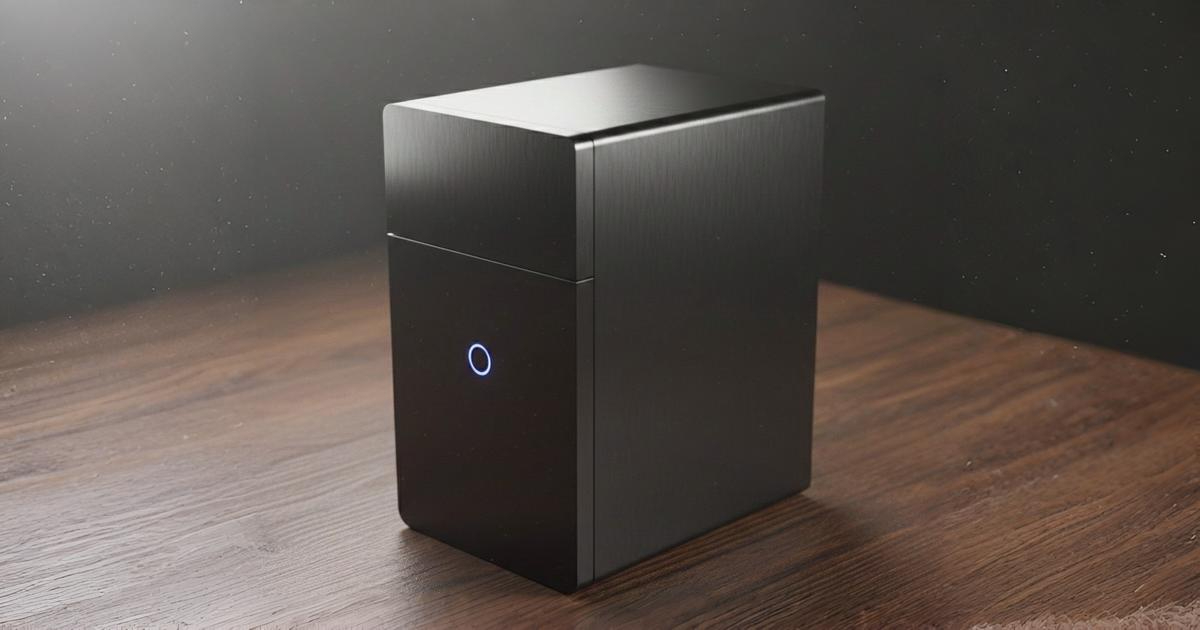
A NAS device connects to your home network and provides centralized storage for all your devices. Everyone in your household can back up to the same location, and you can access files from any device on the network.
NAS devices often include multiple drives configured for redundancy, meaning your backup itself has a backup built in.
Advantages of Local Backups
Local backups offer compelling benefits that make them essential for any data protection strategy.
| Advantage | Why It Matters |
|---|---|
| Speed | Backups complete quickly over direct connections |
| No Internet Required | Works offline, perfect for slow or metered connections |
| One-Time Cost | Pay for hardware once, no recurring subscription fees |
| Complete Control | You own and manage your data entirely |
| Fast Restoration | Recover files in minutes, not hours |
| Privacy | Data never leaves your physical possession |
The restoration speed is particularly valuable during emergencies. When your hard drive fails and you need files immediately, waiting for cloud downloads wastes precious time. Local backups restore files at drive speed, often gigabytes per minute.
Disadvantages of Local Backups
Despite their benefits, local backups have limitations you need to understand.
| Disadvantage | Impact |
|---|---|
| Physical Vulnerability | Fire, flood, or theft destroys both original and backup |
| Hardware Failure | Backup drives can fail just like primary drives |
| Limited Accessibility | Cannot access backups remotely without additional setup |
| Manual Management | You must remember to connect drives and monitor health |
| Scalability | Adding capacity requires purchasing new hardware |
The biggest risk is geographic concentration. If your house burns down, both your computer and backup drive disappear together. This is why security experts recommend combining local backups with offsite copies.
Local Backup vs Cloud Backup
Both approaches have their place in a comprehensive strategy. Here’s how they compare:
| Factor | Local Backup | Cloud Backup |
|---|---|---|
| Backup Speed | Very fast | Depends on internet speed |
| Restore Speed | Very fast | Depends on internet speed |
| Cost Structure | One-time hardware purchase | Monthly/annual subscription |
| Disaster Protection | None (same location) | Excellent (offsite) |
| Remote Access | Requires setup (VPN, etc.) | Built-in |
| Maintenance | You manage hardware | Provider manages infrastructure |
The best protection combines both approaches. Use local backups for speed and convenience, plus cloud backups for disaster protection. This follows the industry-standard 3-2-1 backup rule.
The 3-2-1 Backup Rule
Data protection experts recommend the 3-2-1 rule for comprehensive security:
- 3 copies of your data (original plus two backups)
- 2 different storage media types
- 1 copy stored offsite
Local backups satisfy the first two requirements beautifully. You have your original files on your computer, plus a backup on an external drive. That’s two copies on different media. But you still need that third copy somewhere else.
Think of local and offsite backups as partners, not competitors. Local handles daily convenience; offsite handles disaster recovery.
Best Practices for Local Backups
Follow these guidelines to maximize the effectiveness of your local backup strategy.
Use Multiple Drives
Rotate between two or more external drives if possible. Keep one connected for regular backups, and store the other offsite or in a fireproof safe. Swap them weekly or monthly for maximum protection.
Test Your Backups
A backup you cannot restore is worthless. Periodically test restoring files to verify everything works correctly. Try restoring different file types and from different backup dates.
Monitor Drive Health
Hard drives don’t last forever. Use monitoring software to check drive health regularly, and replace aging drives before they fail. Most drives show warning signs before complete failure.
Keep Software Updated
Backup software updates often include bug fixes, performance improvements, and security patches. Enable automatic updates or check for new versions quarterly.
Encrypt Sensitive Data
Enable encryption for any backups containing personal, financial, or business data. If someone steals your backup drive, encryption prevents them from accessing your files.
Store Drives Properly
When not in use, store backup drives in a cool, dry place away from magnets and direct sunlight. Use protective cases for portable drives, and label them clearly with dates and contents.
When to Use Local Backups
Local backups fit perfectly into many scenarios:
Large File Collections: Photographers, videographers, and designers with terabytes of data benefit from local backup speed. Uploading massive files to the cloud takes forever.
Slow Internet Connections: If your upload speed measures in megabits rather than gigabits, cloud backups become impractical. Local backups work at full drive speed regardless of internet quality.
Privacy-Conscious Users: Those handling sensitive data, such as lawyers, doctors, and researchers, often prefer keeping backups entirely under their control.
Budget-Conscious Users: The one-time cost of a hard drive appeals to those avoiding monthly subscriptions.
Frequent Restores: Developers, content creators, and others who regularly restore previous versions of files appreciate the speed of local storage.
Setting Up Your First Local Backup
Getting started with local backups takes just a few steps:
- Choose your storage: Purchase an external hard drive with at least twice your current data size
- Select backup software: Use built-in tools (Time Machine for Mac, File History for Windows) or third-party solutions
- Configure your backup: Select which folders to protect and set a schedule
- Run the first backup: This initial copy takes the longest; subsequent backups are much faster
- Verify and test: Check that files backed up correctly and practice restoring one
Most people can complete setup in under an hour. Once configured, backups happen automatically without further effort.
Conclusion
A local backup provides the fastest, most controllable way to protect your digital life. While it cannot protect against every disaster on its own, it forms the essential foundation of any solid backup strategy.
The speed and convenience of local backups make them perfect for daily protection against hard drive failures, accidental deletions, and file corruption. When combined with an offsite backup for disaster scenarios, you achieve true peace of mind.
Don’t wait for data loss to strike. Buy an external drive today, spend an hour setting it up, and sleep better knowing your files are safe.
Related Terms
Offsite Backup
An offsite backup stores copies of your data in a physically separate location from your original files, protecting against disasters like fires, floods, and theft.
Cloud Backup
Cloud backup is a service that automatically copies your files to remote servers over the internet, keeping your data safe from local disasters and accessible from anywhere.
3-2-1 Backup Rule
The 3-2-1 backup rule is a simple strategy that recommends having three copies of your data on two different media types, with one copy stored offsite to protect against disasters.
Disaster Recovery
Disaster recovery is the process of restoring critical data and systems after unexpected events like hardware failure, cyberattacks, or natural disasters, with backups playing a central role in fast recovery.
Ready to backup your files? Download BlinkDisk for Free
BlinkDisk is a desktop application that lets you effortlessly create backup copies of all your important files.